How to Hide or Lock Adult Channels on IPTV (Parental Controls Guide)
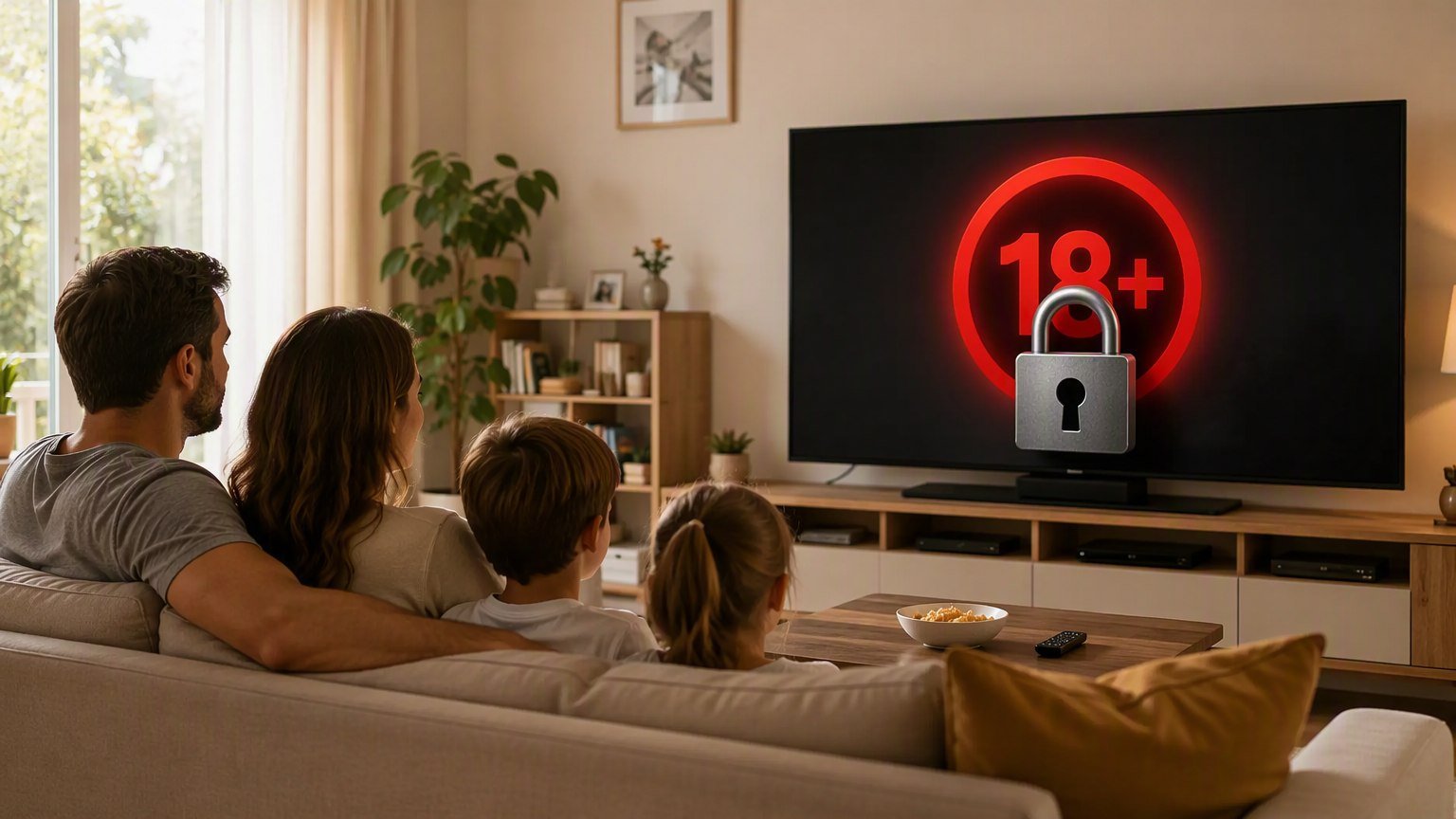
IPTV parental controls take about ten minutes to set up, and once they're in place, adult-oriented categories simply stop existing for anyone who doesn't know your PIN. I've configured these locks on Firesticks, Android TV boxes and smart TVs for my own household and for more readers than I can count — this guide is the exact process I use, app by app and device by device.
A quick note on scope: premium IPTV lineups often include adult-oriented categories alongside sports, movies and international channels. With MPTV those categories are optional and kept separate — you can read how they're organized on the adult content (18+) channel page. Whether you keep them locked for yourself or remove them entirely, the controls below are how you make sure kids never stumble into them.
How IPTV Parental Controls Actually Work
There is no single "parental controls" switch in IPTV — there are three layers, and the families who get this right use at least two of them:
- App-level locks. Player apps like TiviMate and IPTV Smarters let you PIN-lock entire channel categories. This is the fastest layer to set up and the one most people mean when they search for IPTV parental controls.
- Device-level locks. Firestick, Android TV and smart TV platforms can require a PIN to install or open apps. This stops the classic workaround — deleting and reinstalling the player app to wipe its settings.
- Account-level choices. The cleanest option of all: ask your provider for a playlist that simply doesn't include adult-oriented categories. Nothing to lock because there's nothing to find.
Here's how the three layers compare in practice:
| Layer | What it does | Setup time | Bypass resistance |
|---|---|---|---|
| App-level PIN (TiviMate, Smarters) | Locks or hides selected categories inside the player | 5 minutes | Good — weak only if the app is reinstalled |
| Device-level PIN (Firestick, Android TV) | Blocks app installs, purchases and app launches | 5 minutes | Strong — covers the reinstall loophole |
| Account-level (provider playlist) | Removes adult categories from your lineup entirely | One support message | Strongest — nothing exists to unlock |
My recommendation for any TV that kids can reach: app-level lock plus device-level PIN. Add the account-level request if you want the categories gone for good.
Lock Adult Categories with a PIN in TiviMate
TiviMate is the app I use daily, and its parental controls are genuinely well designed. Here's the exact sequence on the current version:
- Open TiviMate and go to Settings (long-press the select button on the home screen, or use the gear icon).
- Scroll to Parental controls and toggle it on.
- Set a four-digit PIN. Pick something that isn't your device unlock code, your birthday, or 1234 — kids try those first.
- Back out to the channel list, open the groups view, highlight the category you want to restrict, and choose Lock group.
- Repeat for every adult-oriented or otherwise age-restricted group in your playlist.
Two TiviMate details worth knowing. First, locked groups can be hidden entirely from the channel list and EPG — open the groups management screen and set the locked groups to hidden, so they don't even appear as a locked tile. Second, the PIN is also required to change parental control settings themselves, so a curious kid can't simply toggle the feature off.
If you're still deciding between players, my TiviMate vs. IPTV Smarters comparison covers how the two apps differ on parental controls, EPG layout and multi-playlist support. And if you're building your app shortlist from scratch, start with the best IPTV apps for 2026 roundup.
Set Up Parental Controls in IPTV Smarters
IPTV Smarters handles restrictions a little differently — the lock lives in one dedicated menu rather than per-group toggles:
- Open IPTV Smarters and tap Settings.
- Select Parental Control.
- Enter the current PIN — on most builds the default is 0000 — then immediately set your own four-digit code.
- You'll see a list of every category in your subscription. Tick each adult-oriented category (and anything else you want restricted) and save.
- Back on the home screen, those categories now sit behind the PIN prompt.
One Smarters-specific tip: if your household uses the multi-user feature, set the parental PIN per profile. I've seen setups where the parents' profile was locked down but a second profile on the same device had no restrictions at all. Two minutes of checking saves an awkward discovery later.
Also verify the lock actually sticks: after saving, back out completely, reopen the app, and try to open a locked category. You should get the PIN prompt, not the channel list. Test it before you call the job done.
Device-Level Locks: Firestick, Android TV and Smart TVs
App locks are only as strong as the app itself. A determined teenager can uninstall TiviMate, reinstall it fresh, and find a clean app with no PIN set. Device-level controls close that hole.
Amazon Firestick / Fire TV: Go to Settings → Preferences → Parental Controls and turn them on with a five-digit PIN. Once active, the PIN is required to launch restricted apps, make purchases and — crucially — install new apps. If your Firestick isn't set up yet, my Firestick IPTV setup guide walks through the whole device from unboxing to first stream.
Android TV / Google TV: Use a restricted profile or the built-in parental controls under Settings → Accounts & Sign-in (wording varies by manufacturer). A restricted profile gives kids their own home screen with only the apps you approve — the IPTV player simply isn't there.
Samsung and LG smart TVs: Both platforms support app locks and rating-based channel locks in their settings menus. If your IPTV runs directly on the TV rather than a stick, lock the player app itself. The full smart TV walkthrough is in my Samsung and LG IPTV setup guide.
MPTV — 30,000+ live channels and 150,000+ movies & series, from $4/month on the 12-month plan. Every first subscription is covered by a 7-day money-back guarantee. Love it or get every cent back.
Smart Habits for a Family-Safe Setup
Settings alone aren't a strategy. After years of reader emails about what actually goes wrong, these are the habits that matter:
- Never reuse a PIN. If the device unlock code, the app PIN and the parental PIN are all the same four digits, you have one lock, not three.
- Don't enter PINs in front of kids. Shoulder-surfing is the number one way parental PINs leak. Angle the remote, or use the app's remote-control phone app.
- Hide, don't just lock. A visible locked category is an invitation. Hidden groups remove the curiosity entirely.
- Audit after app updates. Major updates occasionally reset preferences. Once a month, open the app and confirm your locked groups are still locked.
- Lock the VOD section too. Parents usually think about live channels first, but movie and series categories can be just as age-inappropriate. Lock or hide those groups the same way.
- Have the conversation. Controls buy you time; they don't replace talking to your kids about what's age-appropriate and why.
Do the ten minutes of setup in this guide and the family TV stops being a thing you have to think about — which is exactly the point.
Frequently Asked Questions
Can I remove adult categories from my IPTV subscription entirely?
Usually, yes. Many providers treat adult-oriented categories as optional and can exclude them from your playlist on request. With MPTV, these categories are separate and optional — if you don't want them in your lineup at all, message the 24/7 WhatsApp support and ask for a playlist without them. App-level locks are a good second layer either way.
What is the default parental control PIN in IPTV Smarters?
On most IPTV Smarters builds the parental control PIN defaults to 0000 until you set your own. That's the first thing to change: open Settings, choose Parental Control, enter the default, then set a new four-digit PIN that isn't your birthday or the device unlock code.
Can a determined kid bypass app-level PIN locks?
A tech-savvy teenager can sometimes uninstall and reinstall an app to reset its settings, which is why app locks should be combined with device-level controls. On Firestick and Android TV, a device PIN prevents installing or opening apps without your code, closing that loophole.
Do parental controls affect stream quality or other channels?
No. Locking or hiding a category only changes what the app displays — it doesn't touch the streams themselves, your EPG data for other groups, or playback quality. You can lock and unlock categories as often as you like with zero impact on performance.
Can I hide locked categories so they don't appear in the guide at all?
Yes. In TiviMate, locked groups can be hidden from the channel list and EPG entirely via the groups management screen. In IPTV Smarters, locked categories disappear behind the PIN prompt. Hiding is the better option for family TVs — what kids can't see, they won't ask about.